Common issues
Our browser game runs on ASP.NET Core Blazor technology. It allows you to update the interface in real time without completely reloading the page. When you send a message or perform an action, Blazor updates only the necessary parts of the screen, like in a game where only the current state of the character or the world changes. Technically, this is achieved through server-side rendering, which ensures fast data processing and minimal traffic. As a result, you get instant feedback.
If errors occur or something stops working correctly
In case you encounter errors or the functionality of the app stops working as usual, the first step is to try simply refreshing the page. This will help eliminate temporary problems related to downloading or data transfer.
What to do if the problem is not resolved after refreshing the page
If refreshing the page doesn't solve the problem, you may be having trouble with caching, which is the process by which the browser saves older versions of files to speed up downloads. Sometimes the browser may be using outdated or corrupted data, causing the game to malfunction.
How to clear browser cache:
Go to “Settings” (click on your character icon, at the top of the screen) - then select “Common Settings” and click on “Clear Cache”.
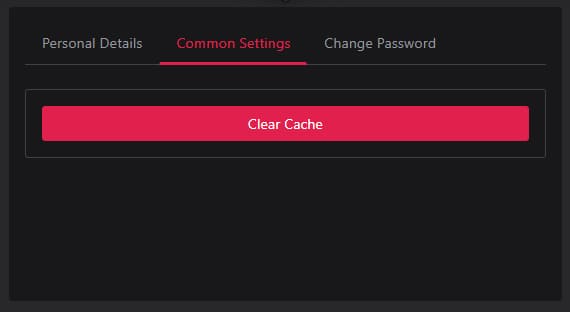
Clearing the cache manually:
Clearing the cache deletes old files and forces the browser to reload fresh versions of all resources. Here's how to do it in the Google Chrome browser:
- Open the browser menu (three vertical dots in the upper right corner).
- Go to the “Settings” section.
- Scroll down and select “Advanced Settings”.
- Under “Privacy and Security”, click on “Clear Browser Data”.
- In the window that opens, select “Cached images and files”.
- Select “All Time” from the drop-down list.
- Click the “Clear Data” button.
After that, the browser will reload all resources again, which may fix the problems.
Why it works:
Clearing the cache helps you get rid of outdated or corrupted data that may prevent your game from working properly. This allows the browser to load up-to-date files and resources, which in most cases solves the problem.